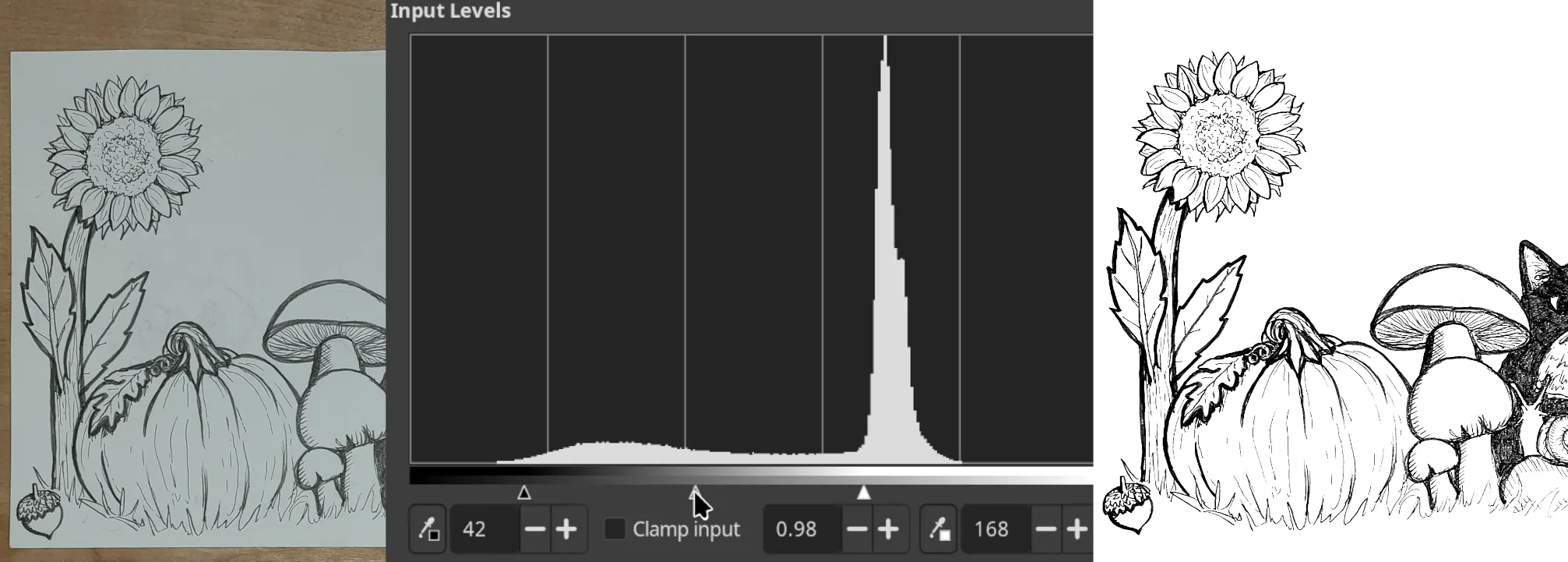
This is a quick guide for digitizing pencil or ink drawings using a phone camera and GIMP. The goal is to convert a hand-drawn original into a clean grayscale or vector image for digital use.
1. Capture the Drawing
Use a phone to capture a photo of the drawing on a flat surface. Position the phone at least 18 inches above the drawing, with the camera lens centered over it and the phone perpendicular to the surface.
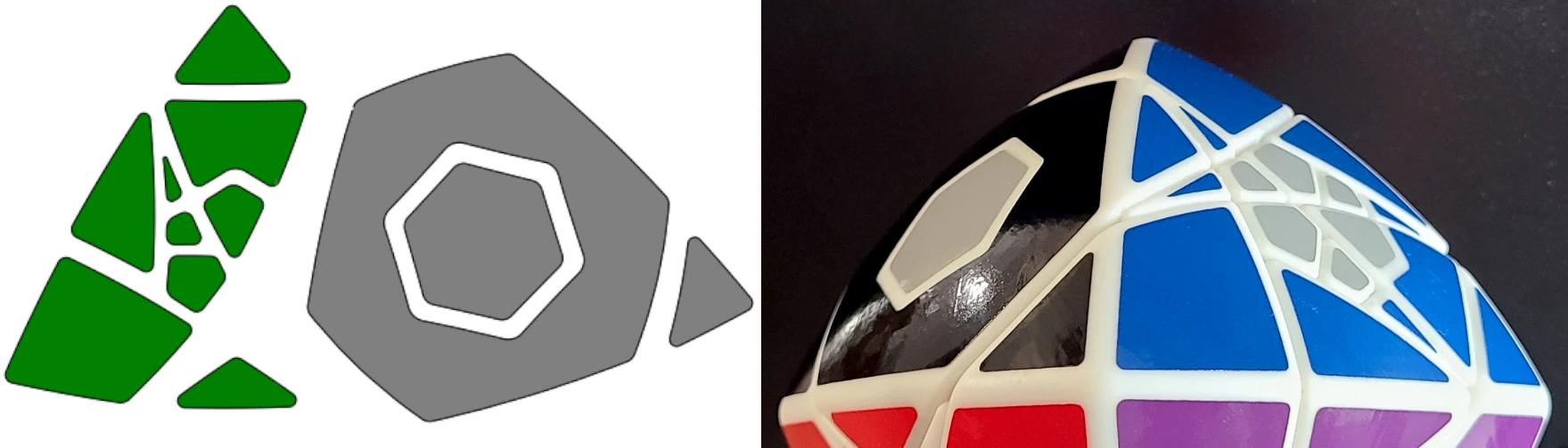
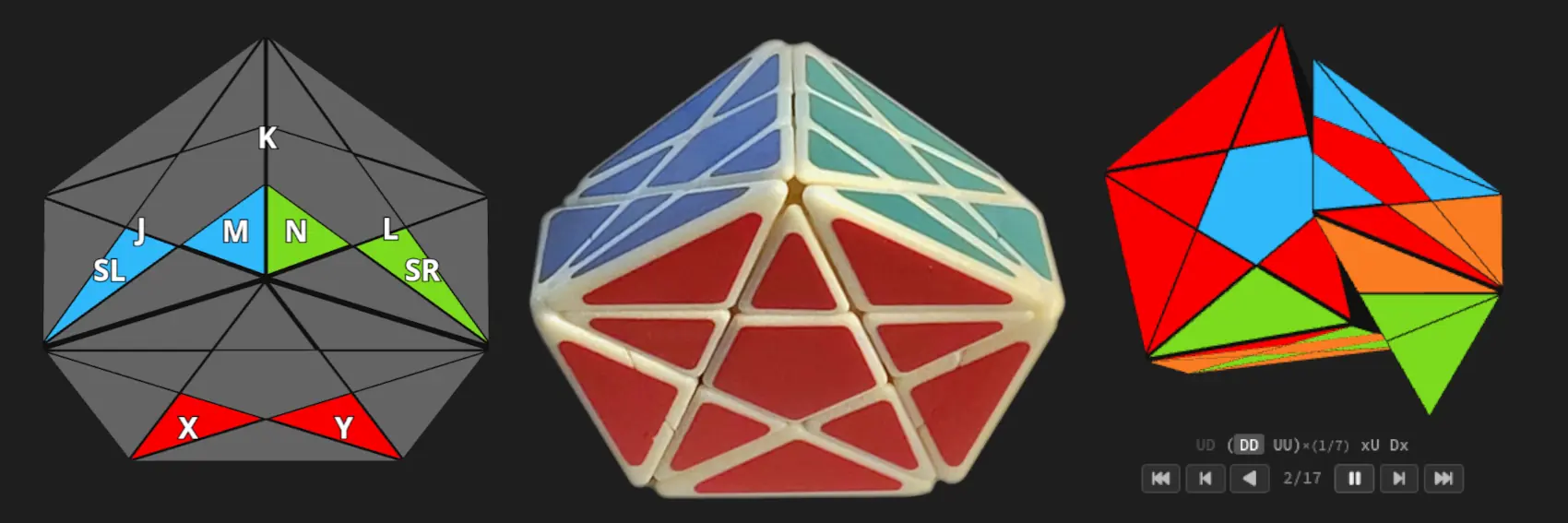
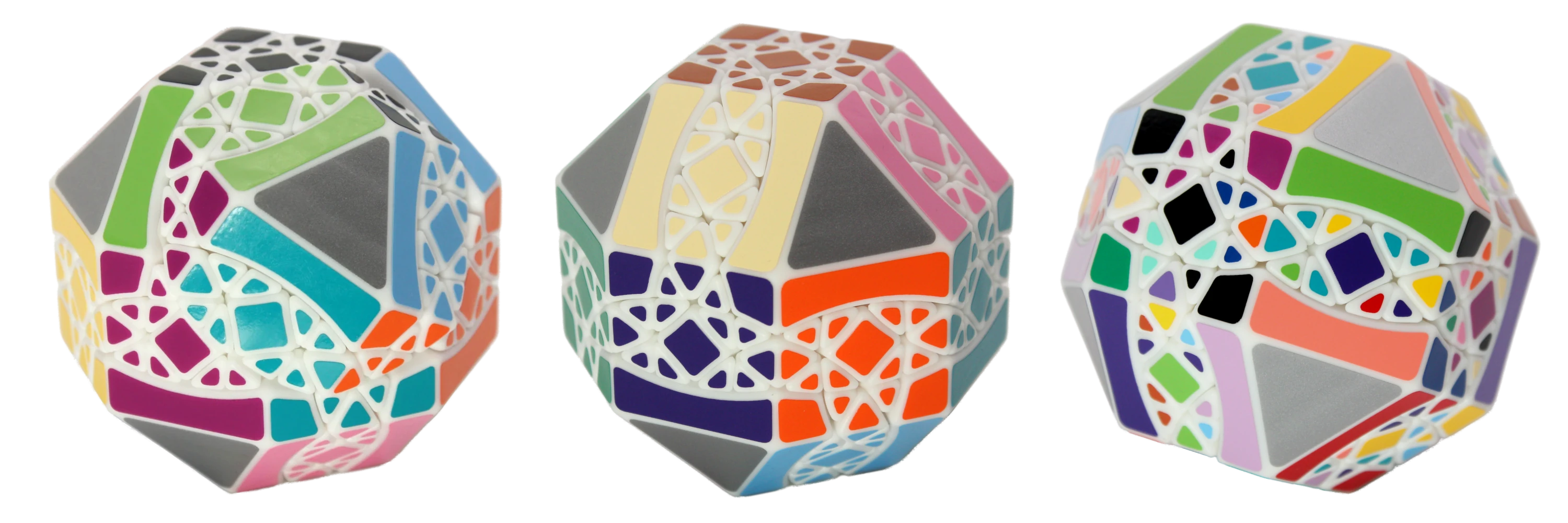
This is a reference guide for designing vinyl decals to fit over a curved surface, using Solidworks or other CAD software. It demonstrates the optimal steps for fine-tuning the shape and offsets of the decal, ending with the surface flattening feature + SVG export available in Onshape. I use this procedure to design stickers for pillowed twisty puzzles.
1. Copy unique surfaces
First, use the Offset Surface tool in Solidworks (or equivalent in your CAD software) to copy each curved surface that gets a sticker. Set the offset to 0 so that the new surface is exactly the same as the original.
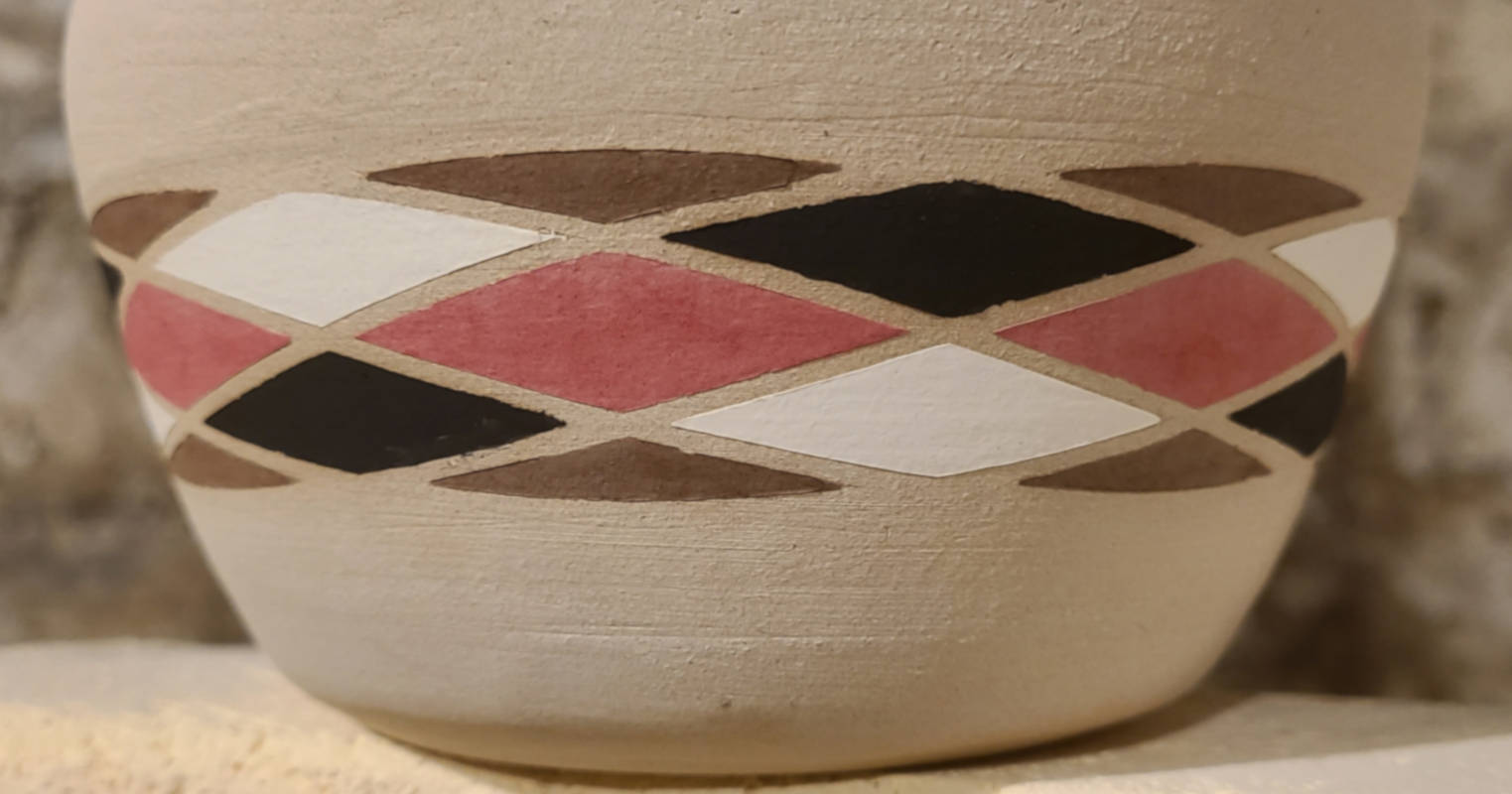
Wrapping vector artwork around a conical object in Inkscape
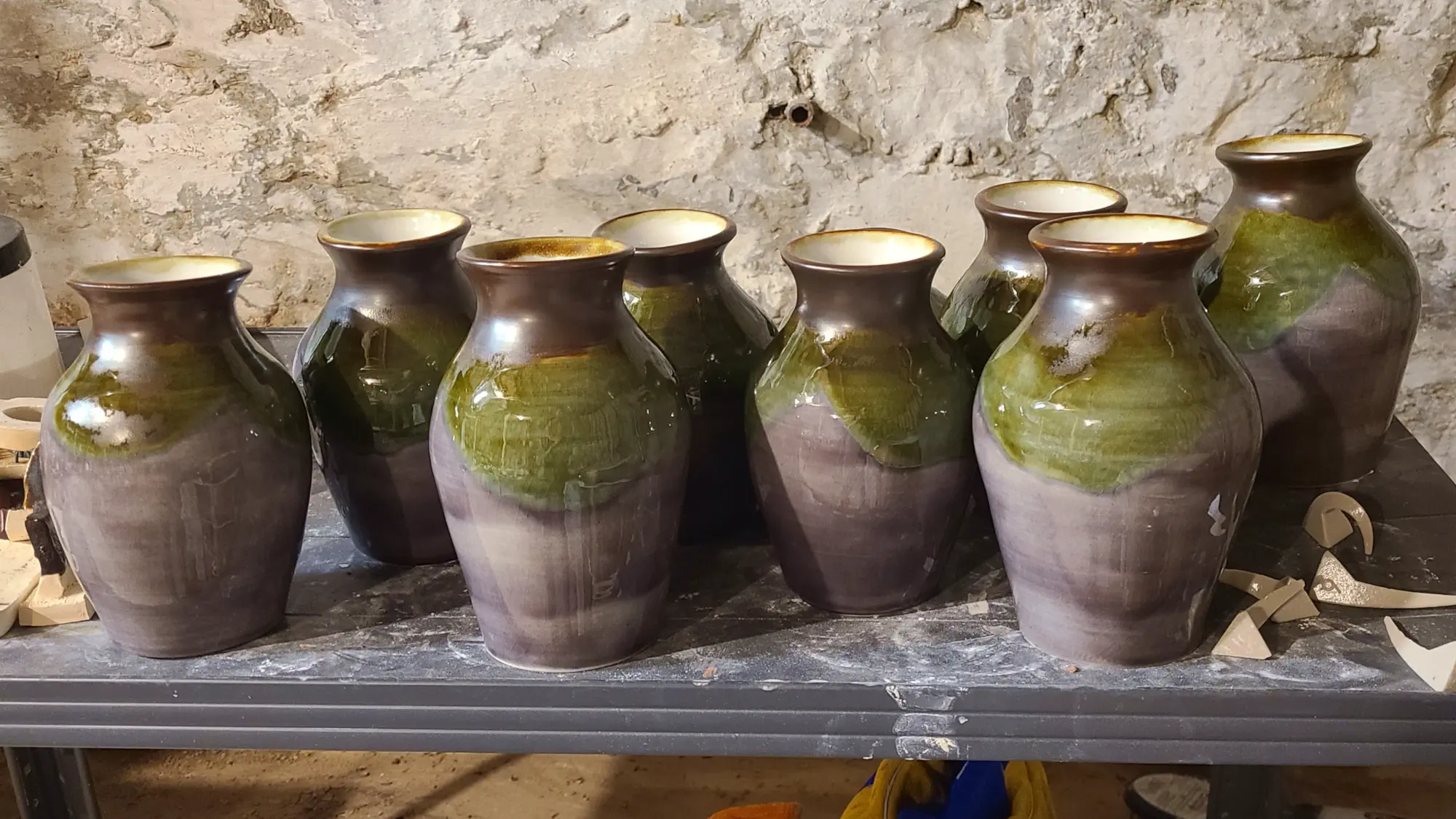
Free vector editing tools are pretty lacking in intuitive ways to wrap a template around a conical object (i.e. mug or vase). I aim to produce a vinyl decal that can be applied perfectly to a ceramic piece without any stretching.
This post is not a step-by-step procedure, but rather a general overview of the steps that I use to fit vector artwork to pieces of pottery using Inkscape and a vinyl cutter.