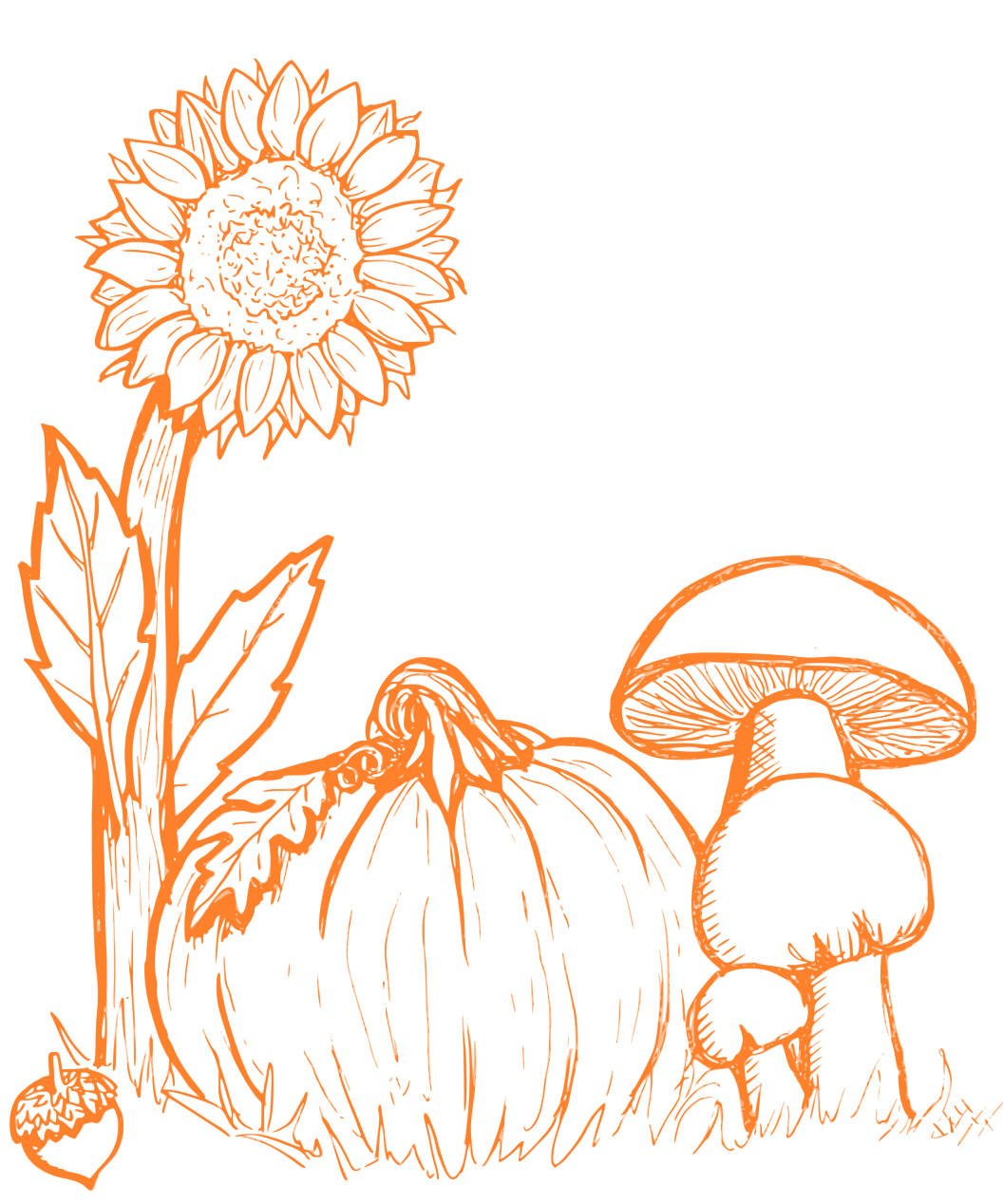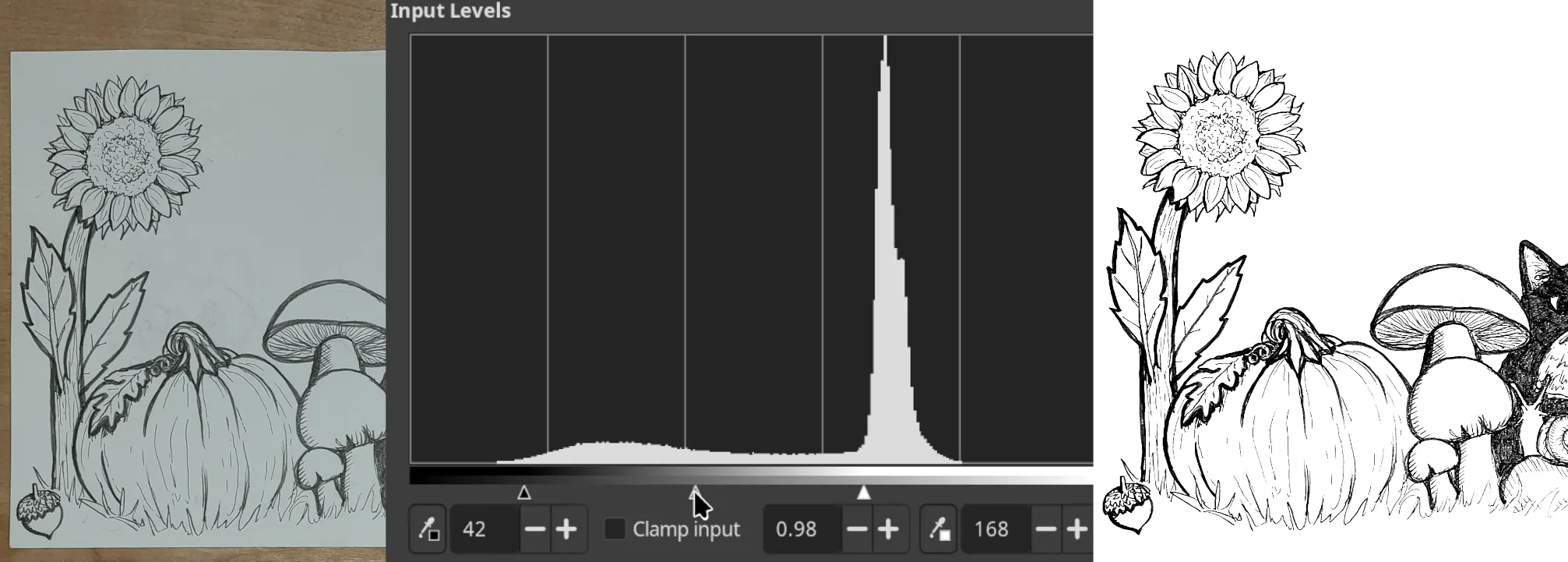
This is a quick guide for digitizing pencil or ink drawings using a phone camera and GIMP. The goal is to convert a hand-drawn original into a clean grayscale or vector image for digital use.
1. Capture the Drawing
Use a phone to capture a photo of the drawing on a flat surface. Position the phone at least 18 inches above the drawing, with the camera lens centered over it and the phone perpendicular to the surface.
💡 Tip: It may be good to turn on the camera flash to ensure uniform lighting, but leave it off and use external lighting if it causes glare.
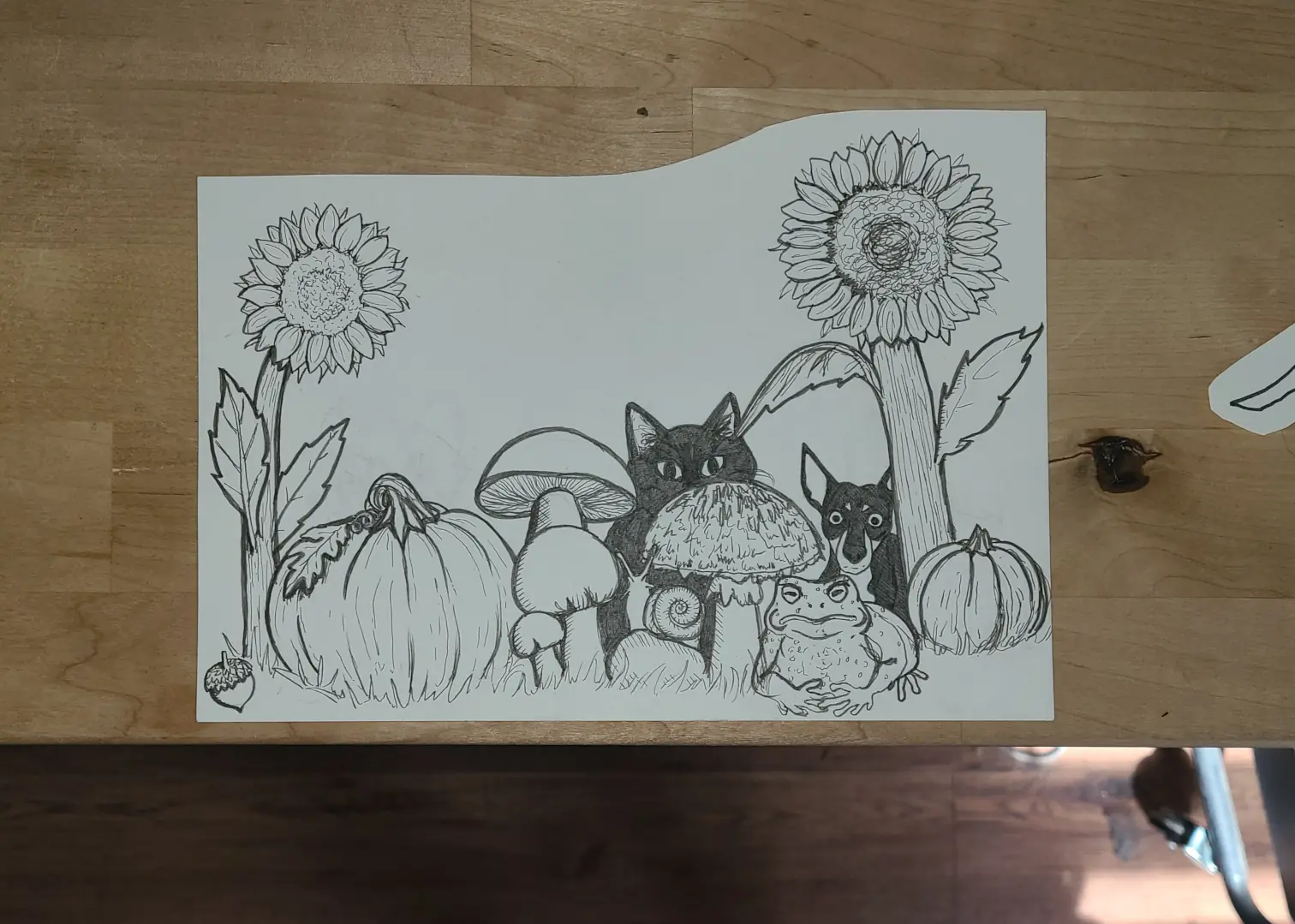
2. Import into GIMP
Import the image into GIMP. (This guide uses GIMP 3.2.)
https://www.gimp.org/downloads/
3. Crop the Image
Crop the image with the Crop tool, dragging over the area you want to keep, and press Enter to apply.
💡 Tip: Use the Rotate and Handle Transform tools to square up the image if needed.
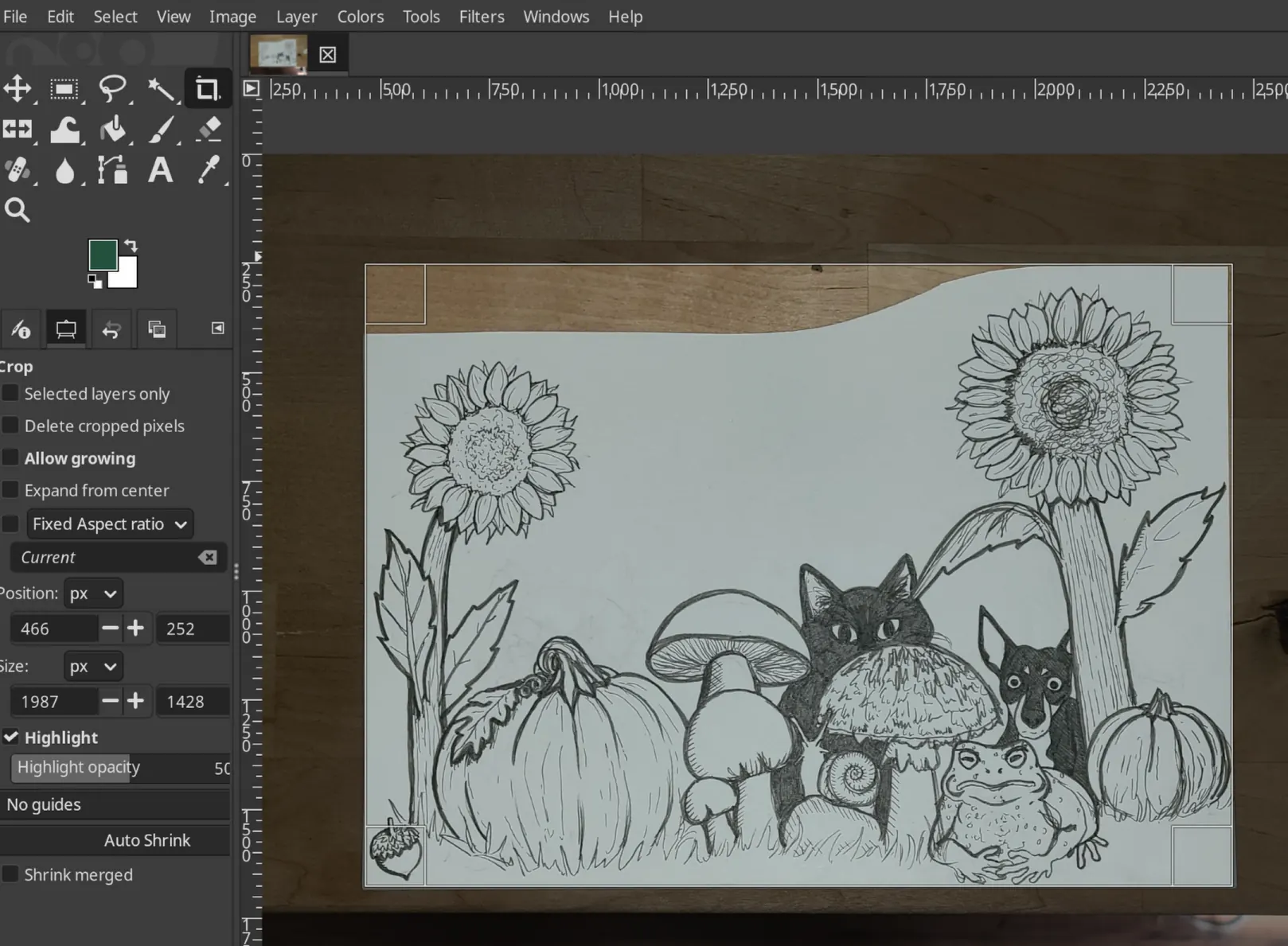
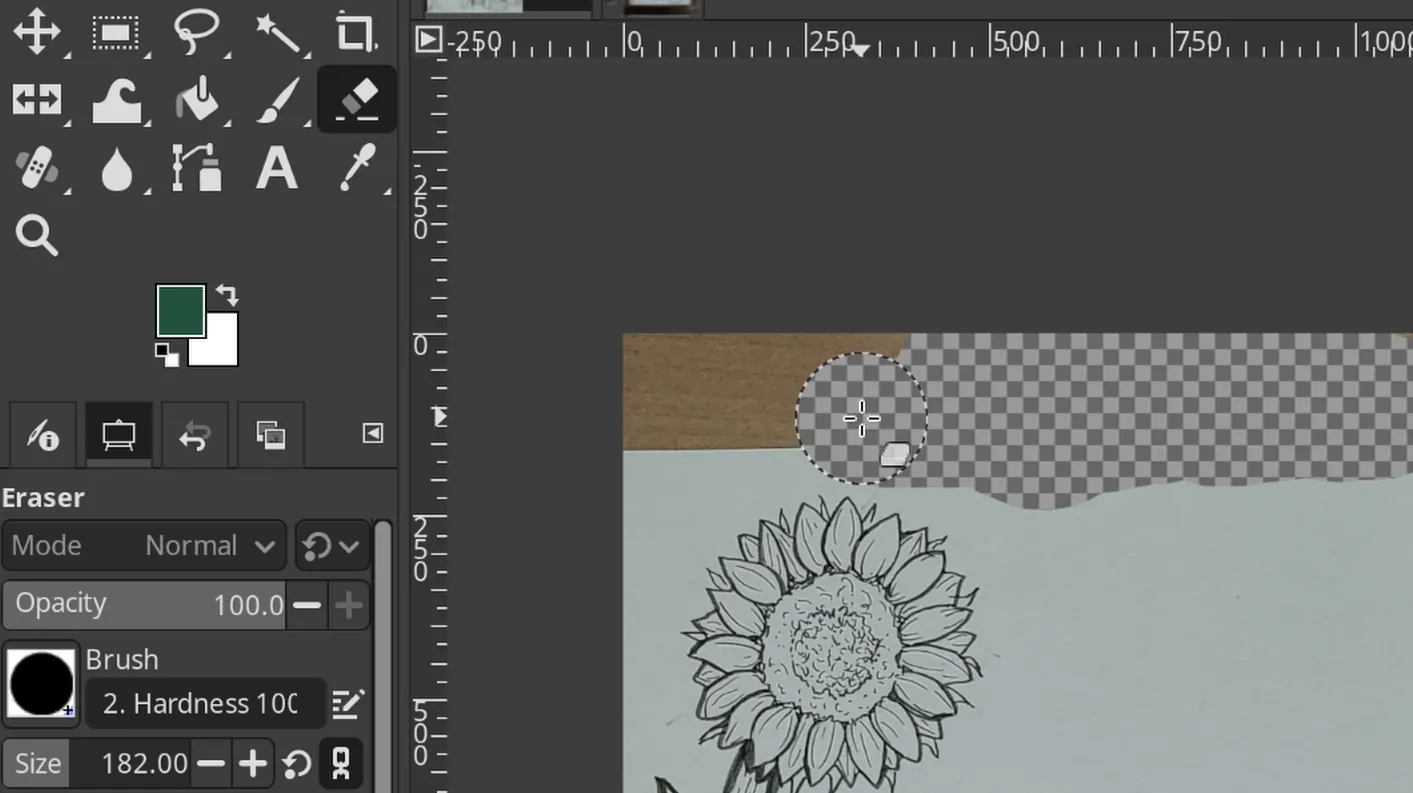
4. Clean Up the Background Edges
Remove any off-canvas background with the Eraser tool.
💡 Tip: Use the Hardness 100 brush with Size around 50 pixels. Make sure Opacity and Hardness are at their maximum.
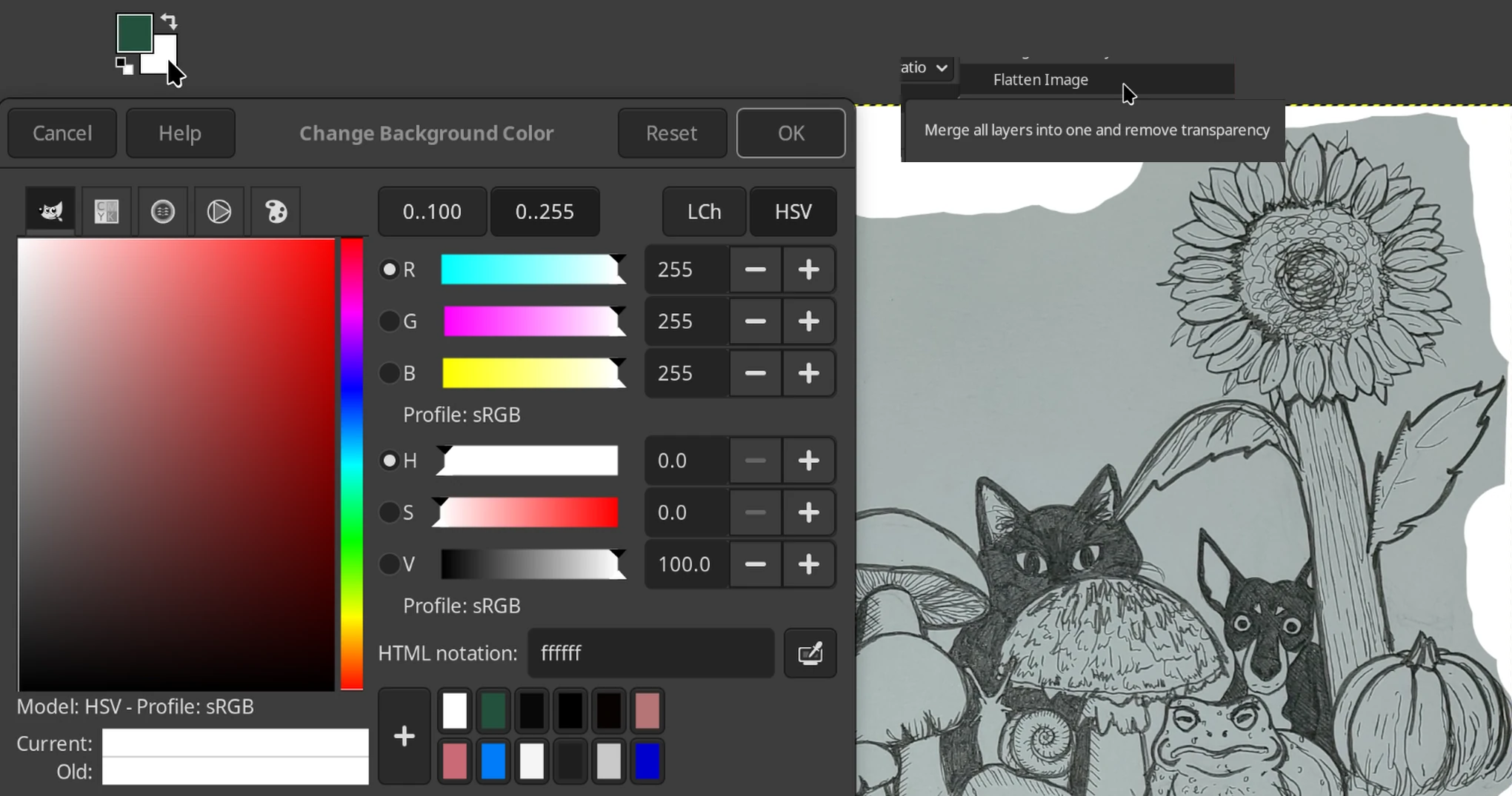
5. Flatten to White
Set your background color to white and use Image → Flatten Image.
6. Extract a Single Color Channel
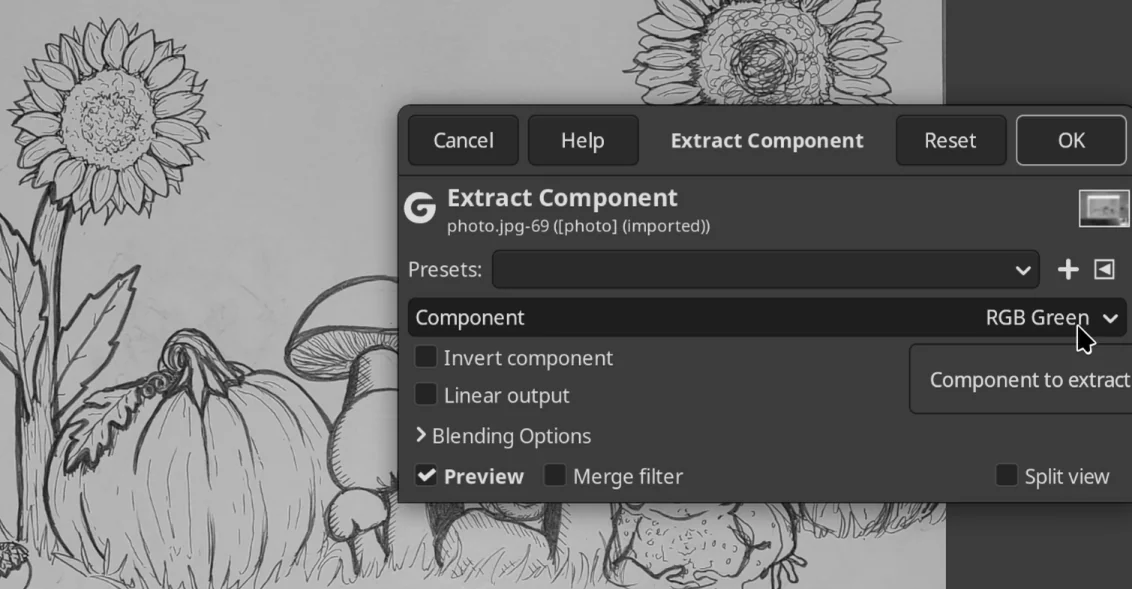
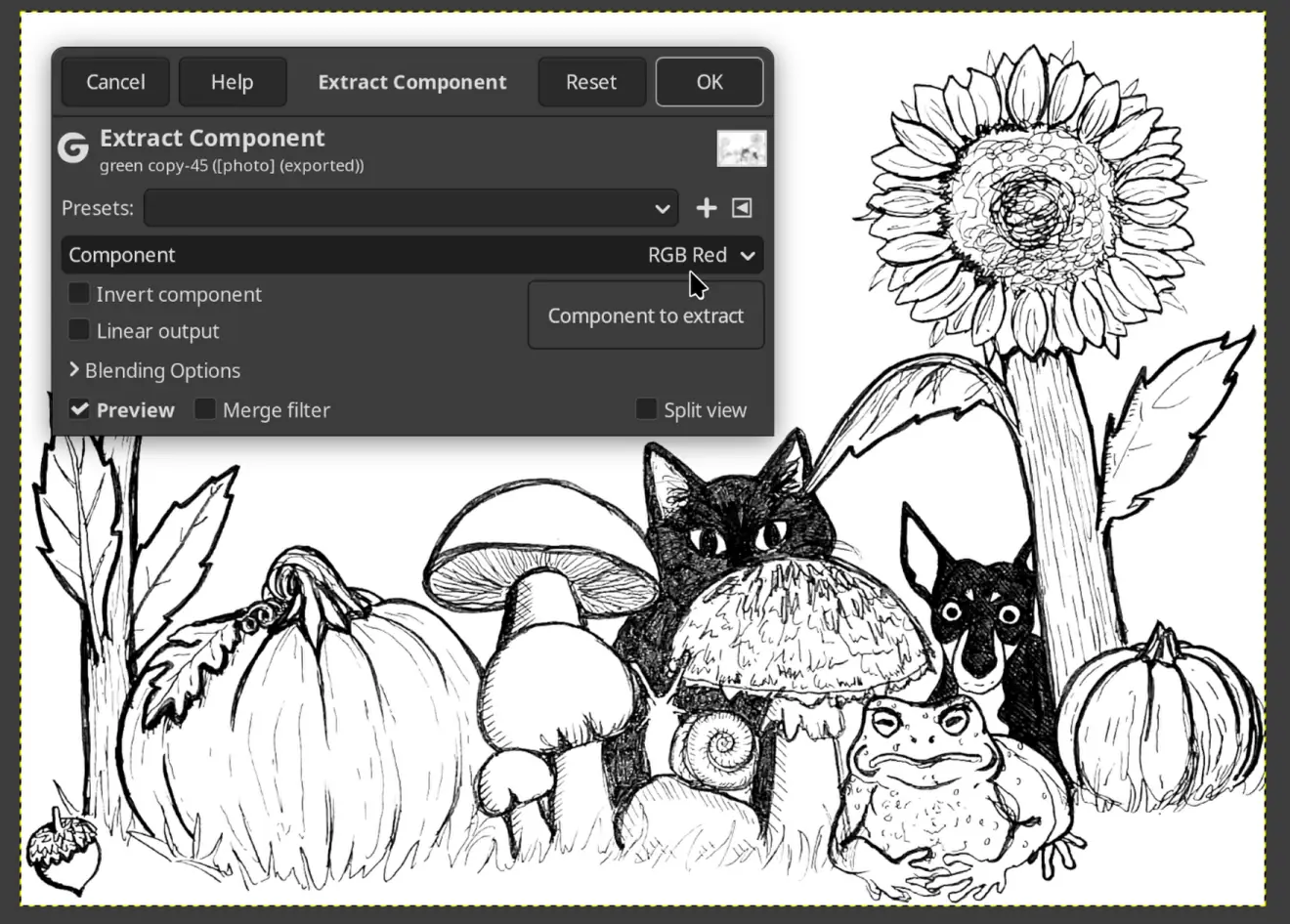
Use Colors → Components → Extract Component. Select either RGB Red, Green, or Blue from the dropdown list. Choose the channel with the least glare and best contrast. From my experience, RGB Green usually works best.
7. Adjust Levels
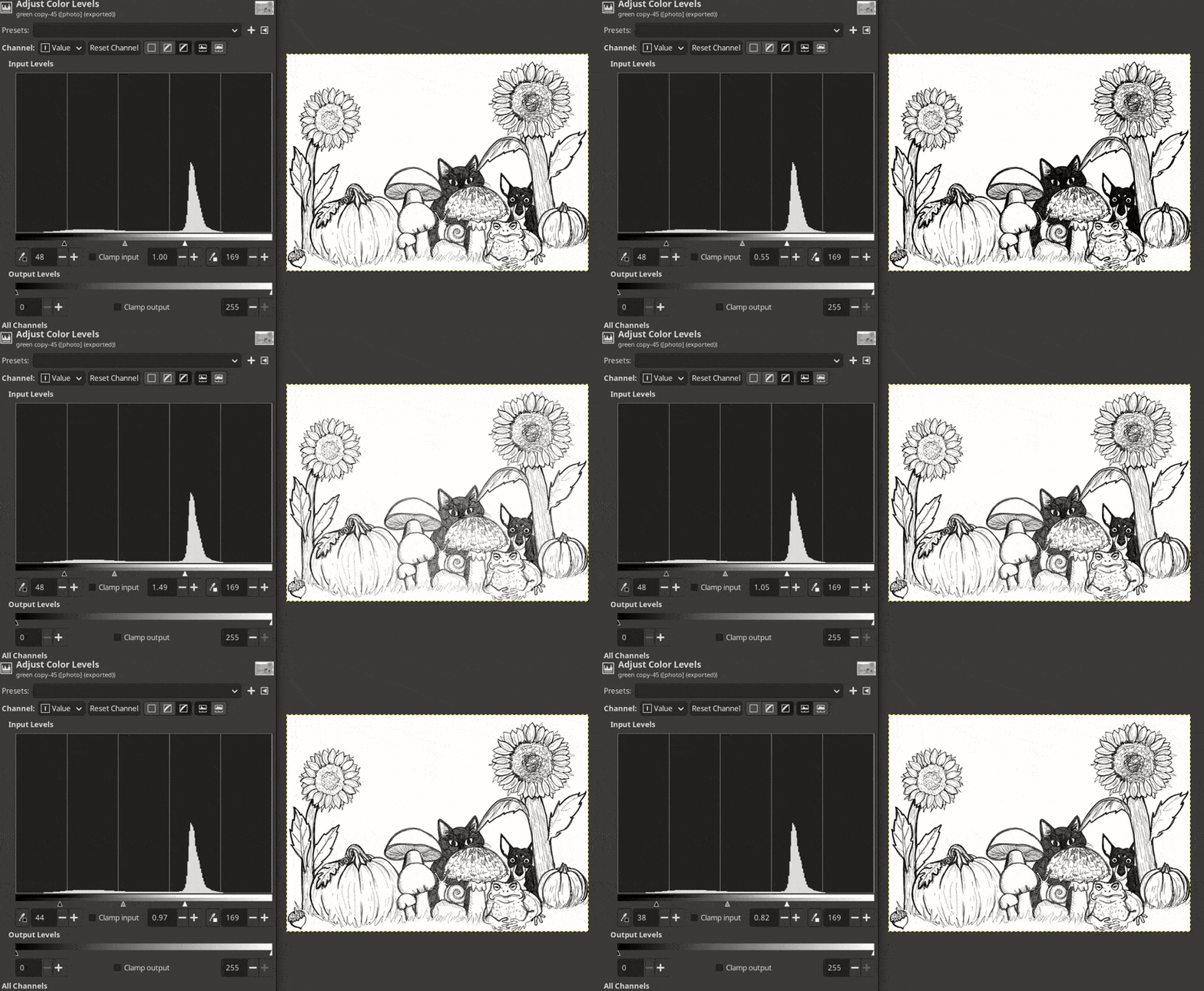
Use Colors → Levels on the Value channel to remove the background and dial in the contrast.
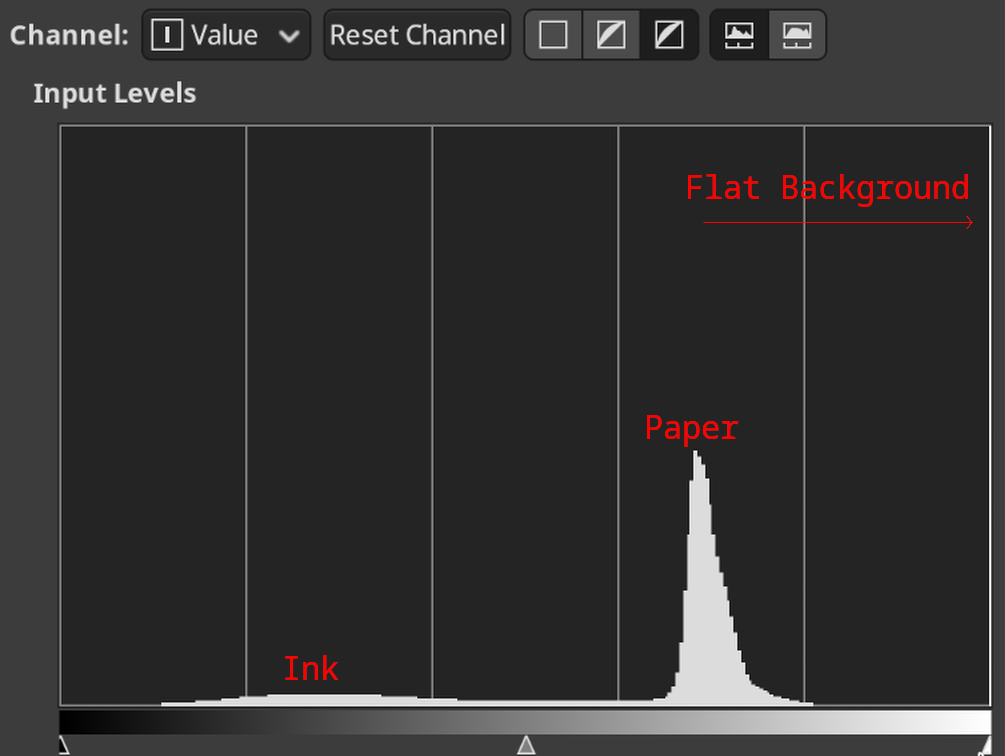
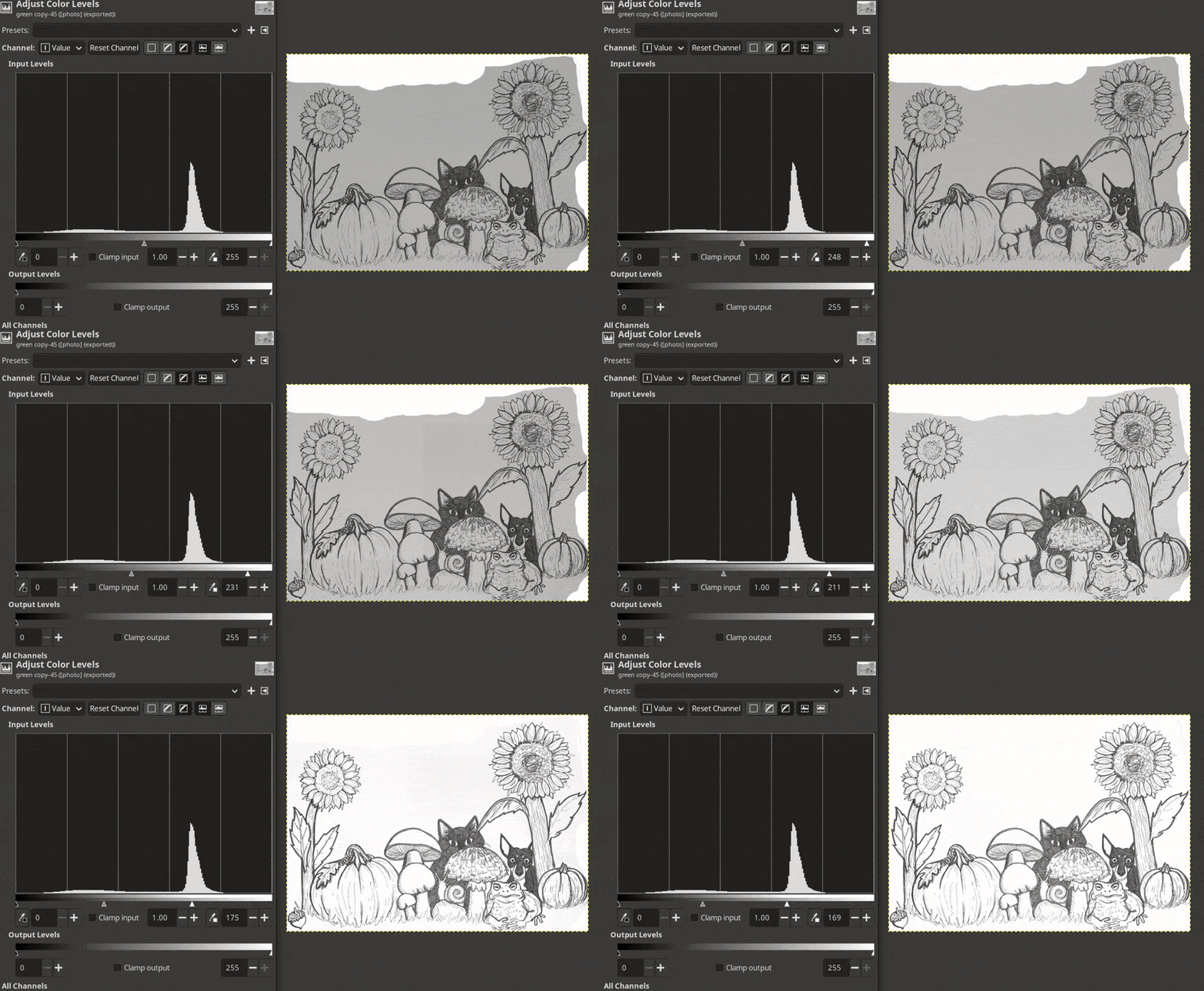
White point adjustment — Identify the rightmost peak on the histogram. Drag the right slider so that it sits just to the left of that peak. This pushes the paper background to pure white.
💡 Tip: If the paper histogram peak is too wide, or the background doesn’t seem to be saturating, the lighting might not be uniform. While this can be corrected in GIMP using a gradient layer, it’s often easier to just re-take the photo.
Black point adjustment — Drag the left slider right until it begins to saturate the darkest lines; represented by the leftmost hill on the histogram.
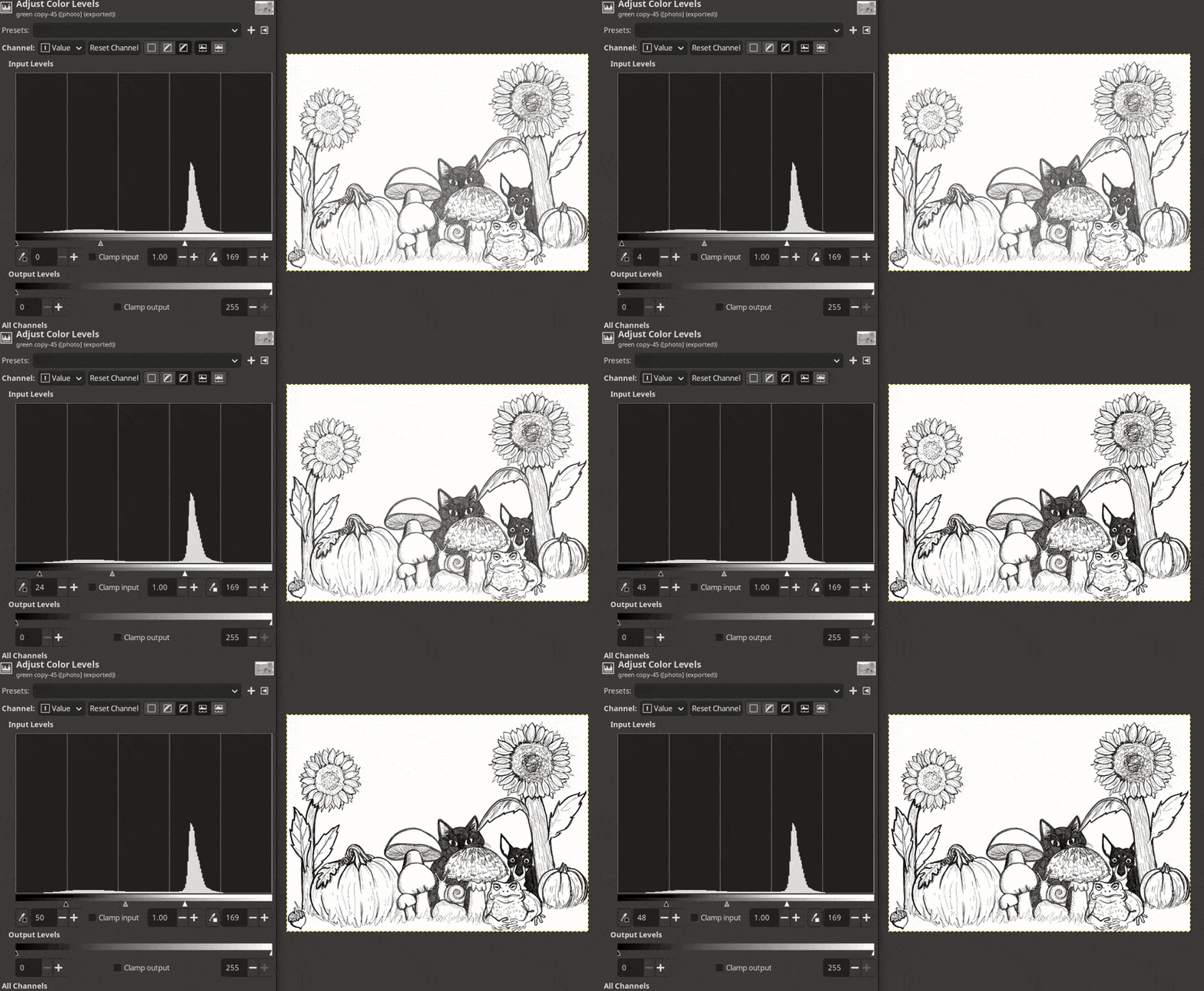
Gamma adjustment — Adjust the middle slider to find a nice contrast balance.
8. Fill Background with Red
Set your foreground color to red (ff0000) and use the Bucket Fill (Shift+B) tool in Fill similar colors mode to fill the background. Ensure the Threshold value is between 0 and 6 before filling. A lower threshold will preserve more edge detail, while higher threshold helps to remove background artifacts.
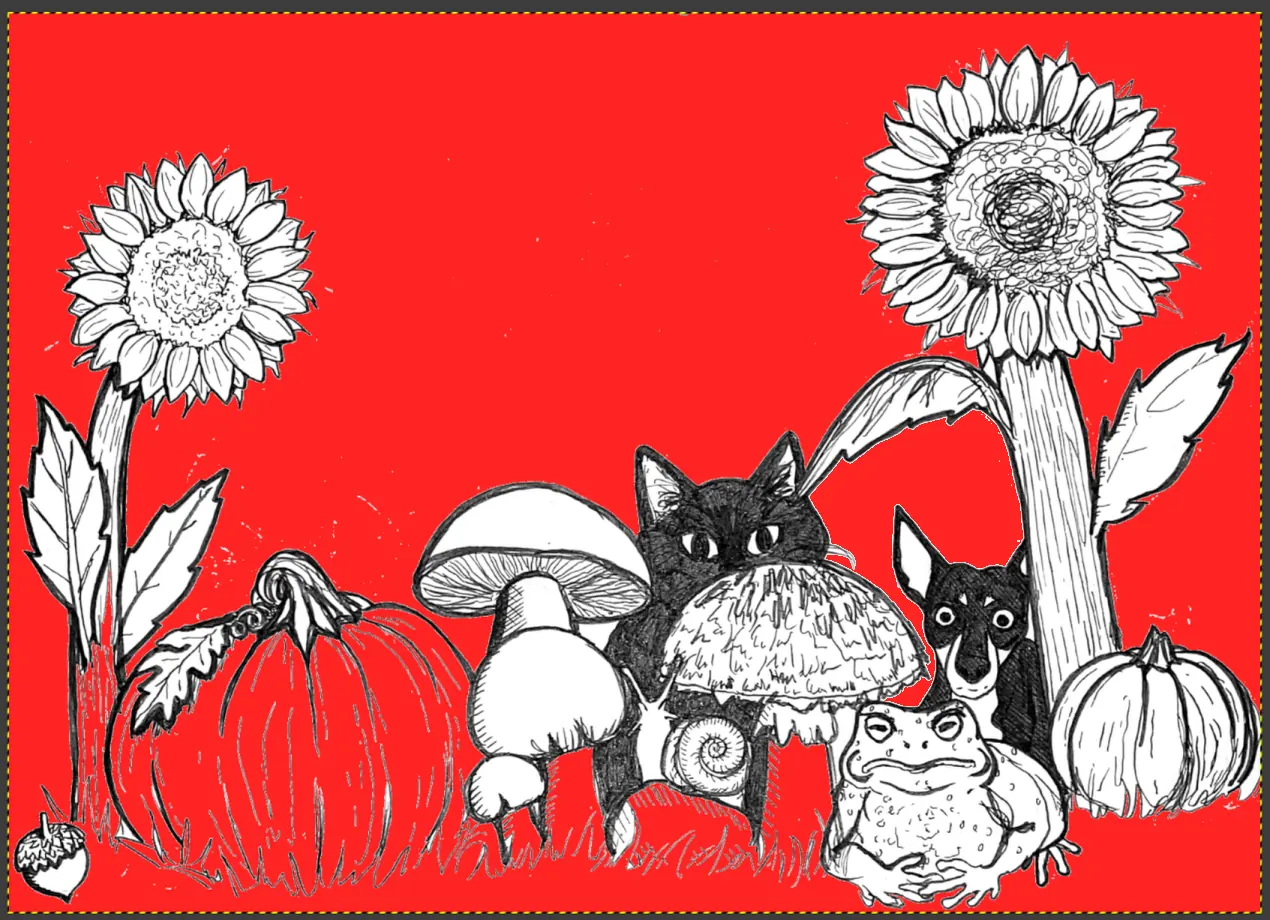
💡 Tip: Before this step, doing an initial background removal pass with a feathered Fuzzy Select Tool might help if the background is messy.
9. Paint Over Unwanted Marks
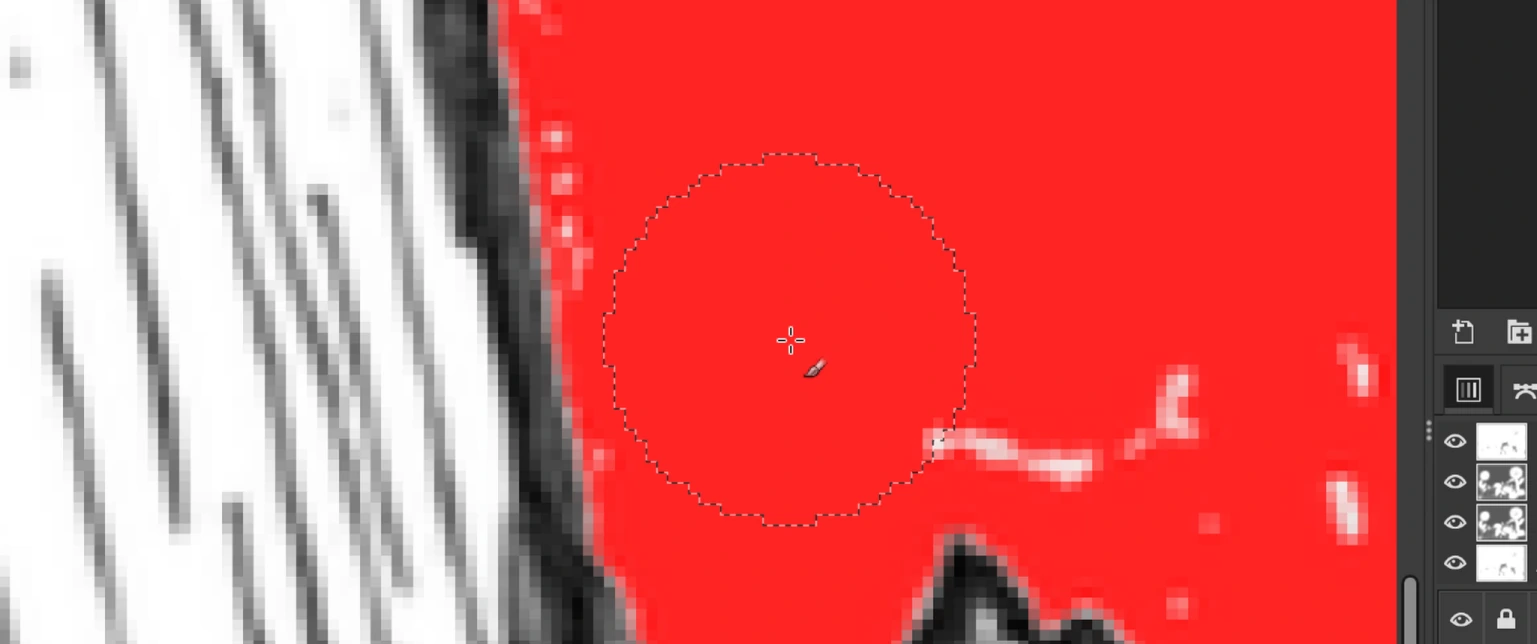
Use the Paintbrush tool (also in red) to paint over any unwanted pencil marks or other artifacts that are now clearly visible against the red background.
10. Extract Red Channel to Restore White
Use Colors → Components → Extract Component again, this time with RGB Red selected. This converts the red background back to white.
11a. Optional — Transparent Background
Use Image → Flatten Image, then Colors → Color to Alpha to convert the white background to transparent.
You can now tweak the background color if desired, and export as a PNG or lossless WEBP file.
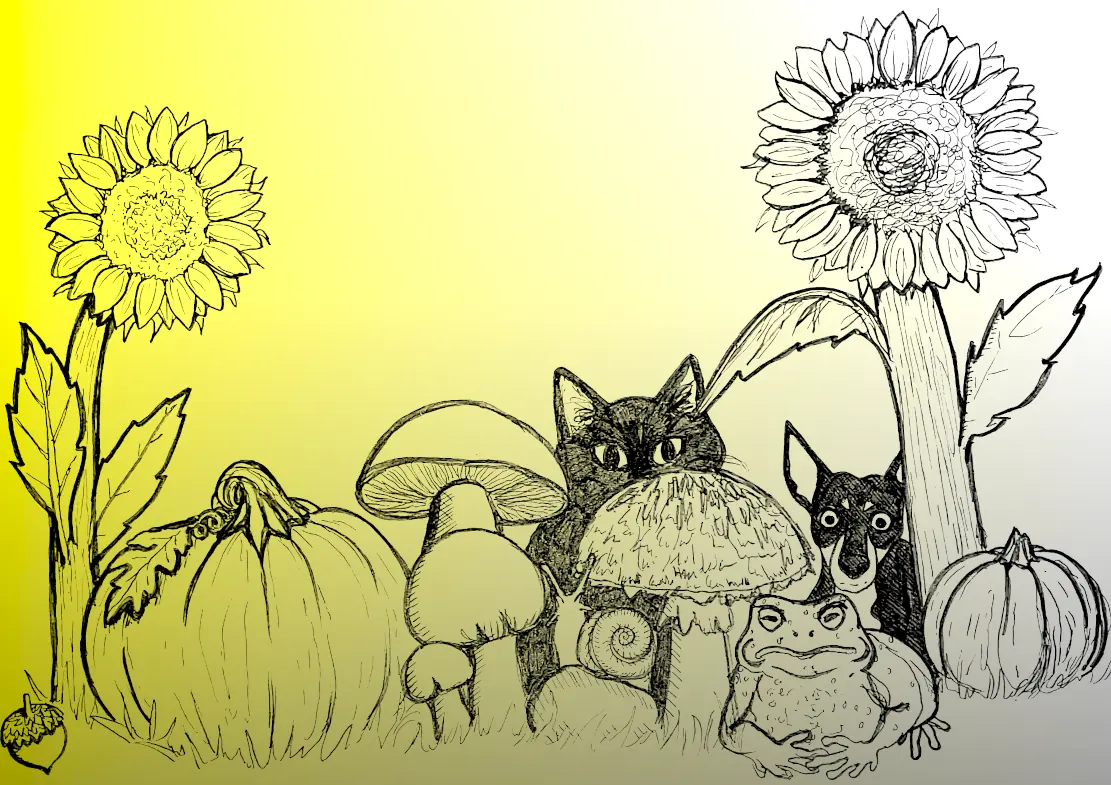
11b. Optional — Convert to Vector
For some cases it might be useful to convert the drawing to a vector image.
Use Select All and Ctrl+C to copy the image with the white background (step 10). Paste it onto a blank Inkscape document and click to select it.
Navigate to the Trace Bitmap (Shift+Alt+B) panel and refer to the settings below:
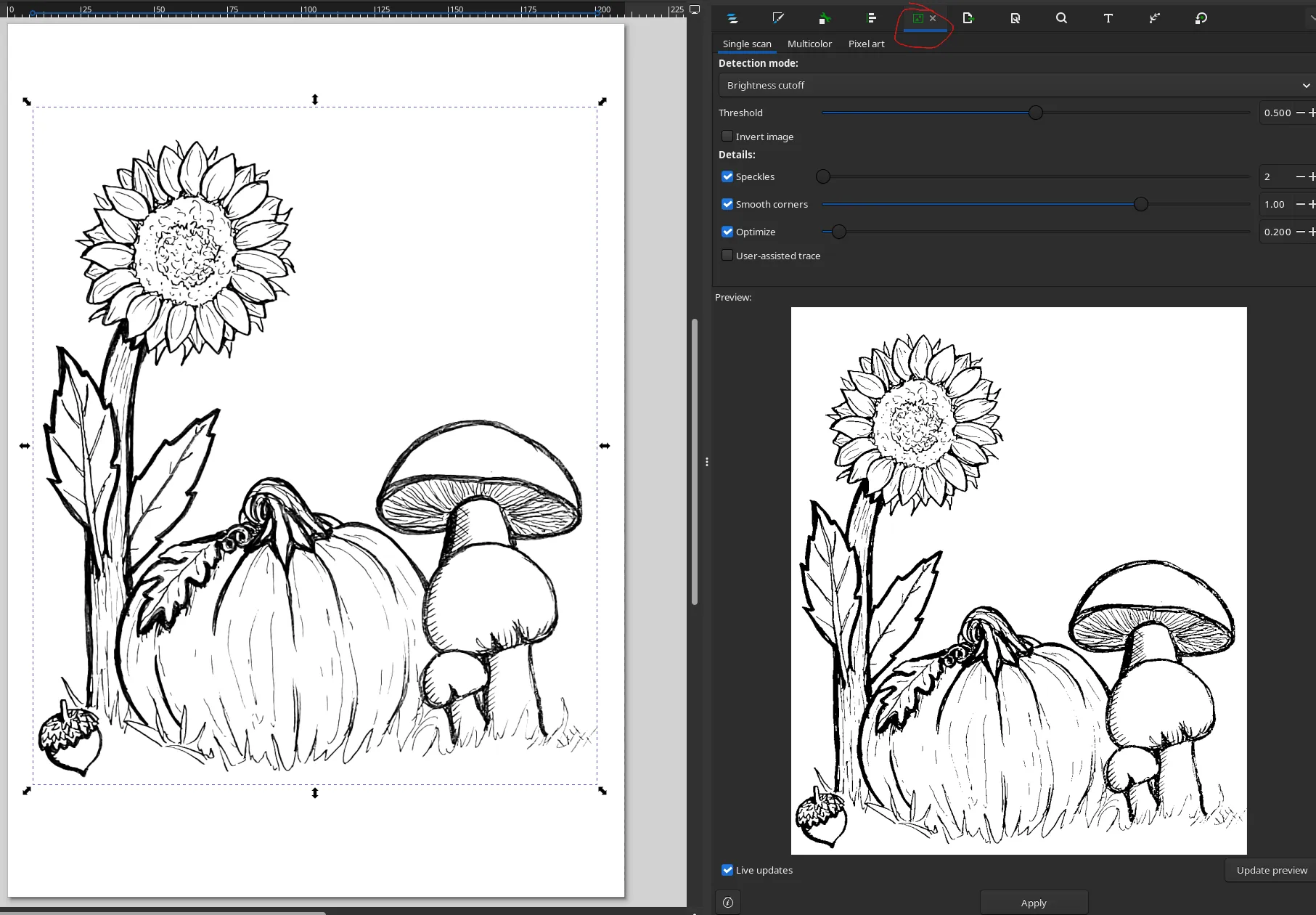
Clicking Apply will create a traced vector copy of the image on a new layer. Delete the original image layer, and adjust the fill color of the vector layer as needed.
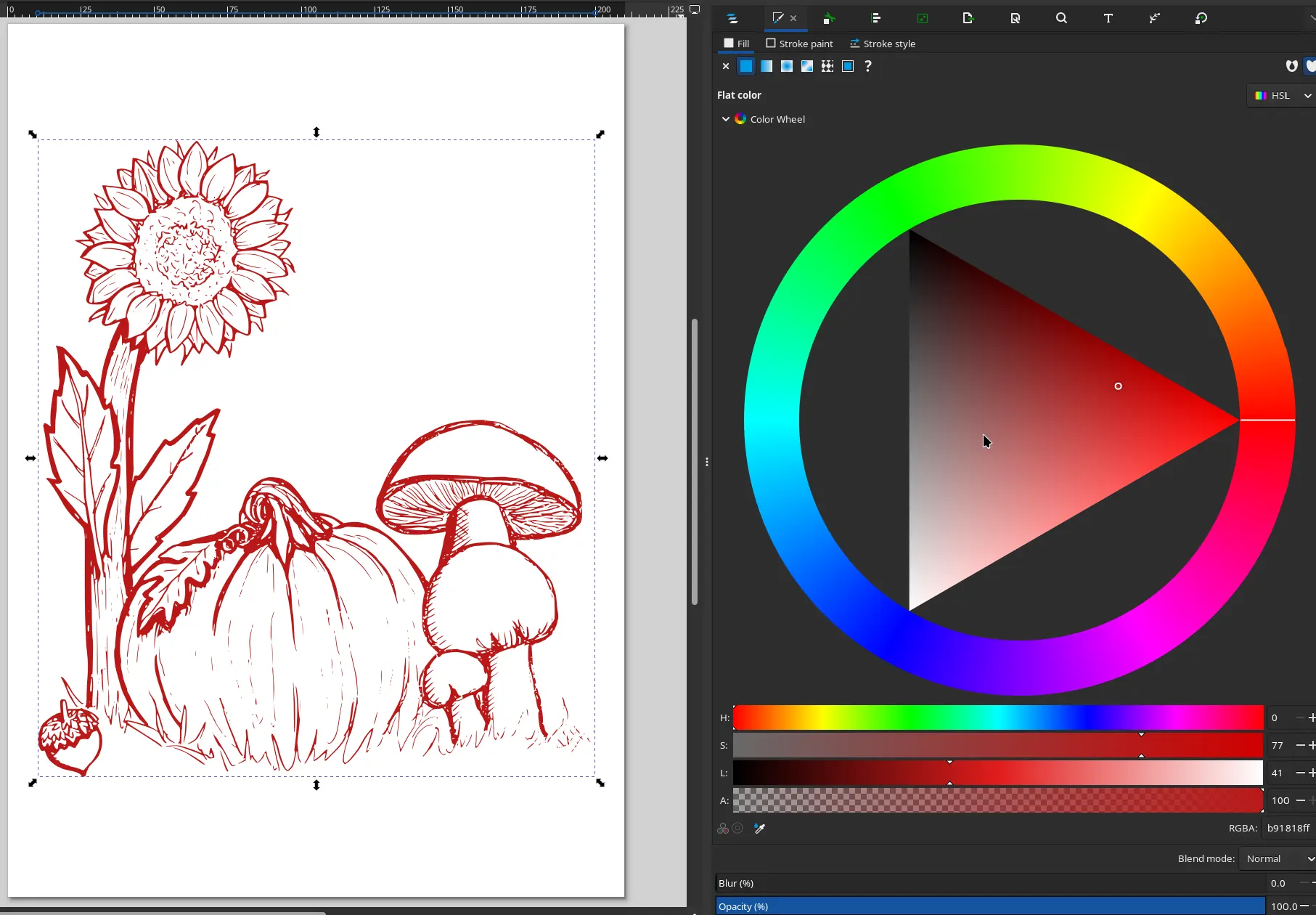
From there, crop the canvas dimensions (Document Properties → Display → Resize to content), and save as an SVG file.
11c. Optional — Multi-pass SVG
If you’re working with a pencil drawing with lots of greys, you might want to do more brightness passes to extract multiple vector layers representing different shades:
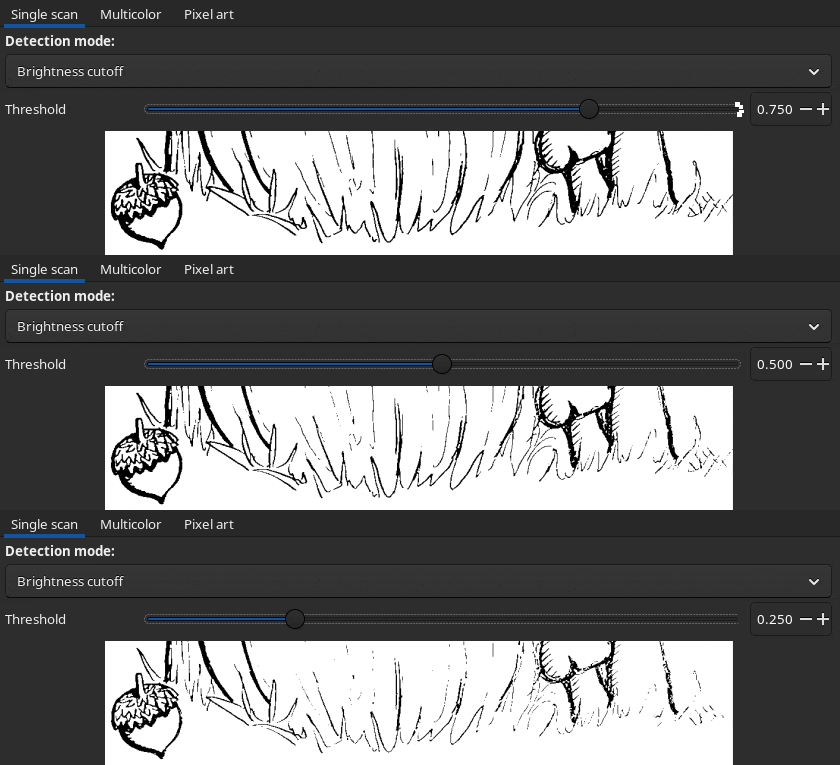
In that case, press Apply once for each brightness pass, and set the the fill color to varying shades of gray, or different alpha values of the same color. Alternatively, try the Multicolor - Brightness steps mode.
To achieve smaller file size for web use, consider using SVGOMG to reduce precision and optimize the SVG data.